
Information for customers sending firearms
You will find details on this page to support you in sending section 1 and 2 firearms and low-powered airguns (as defined by the Firearms Act 1968, as amended), imitation firearms, de-activated guns, antique firearms, paintball guns and inert projectiles (not prohibited by s5 of the Firearms Act 1968 as amended).
You must obtain written approval from Parcelforce Worldwide prior to sending.
To send firearms under Section 1 and Section 2 firearms, low-powered airguns (as defined by the Firearms Act 1968, as amended), imitation firearms, deactivated guns, antique firearms, paintball guns, and inert projectiles (not prohibited under Section 5 of the Firearms Act 1968, as amended), you must obtain written approval from Parcelforce Worldwide prior to sending.
The following points must be adhered to when sending the above items:
- Product: Customers must use the dedicated expressAMF and expressAMF Weekend products on Click & Drop for all shipments listed above. These products are mandatory for sending firearms and related items, as outlined in your Price Confirmation Letter.
- Registered Dealers: Collections and deliveries of Section 1 and Section 2 firearms will only be accepted where both the sender and recipient are Registered Firearms Dealers (RFDs).
- Delivery Attempts: All firearms items listed above can only be delivered to the specified address. If delivery cannot be completed on the first attempt, we will automatically attempt delivery on the next working day. After this, undelivered items will be held at the local depot for 18 days before being returned to the sender.
- Export/Import Restrictions: All types of firearms and guns, including component parts, are prohibited for export and/or import outside the United Kingdom of Great Britain & Northern Ireland.
- Extended Delivery Times: Items sent on expressAMF and expressAMF Weekend to certain postcodes may have extended delivery times. You can check these here.
- Labelling: All items sent on expressAMF and expressAMF Weekend must be clearly labelled with ‘Do not fly’.
- Security: The sender must affix all labels to parcels prior to collection by the Parcelforce Worldwide driver.
- Secure Loading Area: The sending customer should provide a secure area for the driver to park and load the van (e.g., a locked car park or rear premises area), preferably covered by CCTV.
- Packaging: Items must not be identifiable from external packaging. Packaging must be suitable for labels to adhere correctly. Please see our packaging guidelines.
- Removable Cylinders: Air weapons with a removable pressurised gas cylinder attached are prohibited. Cylinders must be removed prior to transit and must not be shipped pressurised.
- Insurance: Customers are strongly advised to have their own Goods in Transit insurance policy. In addition, enhanced compensation options of £750, £1,000, and £2,500 are available when using the expressAMF service.
- Firearms Certificate: A contract can only operate while the Parcelforce Worldwide holds a valid Firearms Certificate from the customer. It is your responsibility to update Parcelforce Worldwide with any licence renewals.
- Service Withdrawal: Parcelforce Worldwide reserves the right to withdraw the firearms service if any clauses in the Terms and Conditions, including prohibitions and restrictions, are not met.
- Dangerous Goods: Any items classified as firearms, as stated above, must be sent on expressAMF. Any other items classified as Dangerous Goods (DG) require separate DG authorisation and must be shipped separately from firearms.
Firearms and firearms accessories must be packaged securely to ensure they can be safely transported and correctly identified throughout the delivery network. Failure to follow these packaging requirements may result in delays or the item being returned.
Labelling
- Use a 6" x 4" thermal-printed label wherever possible.
- If a thermal label is not available, print the label and place it inside a 6" x 4" label wallet to be attached to the item.
- Do not attach A4 paper labels directly to the package using Sellotape or other adhesive tape.
- Clearly write the sender's address, recipient's address, and tracking number on the outer packaging to assist with identification should the shipping label become damaged or detached.
Reused Packaging
- Reused boxes may be used if they remain strong and suitable for transit.
- Ensure all edges and seams are securely sealed with fresh packaging tape.
- Do not leave previous shipping labels, addresses or barcodes visible.
- Remove old labels where possible. If they cannot be removed, completely obscure them before sending.
Documentation
- If the package contains an inner packaged item, ensure the sender and recipient details are also attached to the item inside the package.
- Where required, a sales invoice can be generated through Click & Drop and included with the item.
Packaging Firearms Cases
- Do not apply labels directly to firearms cases, as labels can become detached during transit.
- Firearms cases must be placed inside a strong, suitable outer cardboard box.
- Ensure the outer box is securely sealed and capable of protecting the contents throughout the delivery journey.
Multiple Boxes
- Do not strap boxes together.
- Each box must be sent as an individual item and must have:
- Its own unique tracking number
- Its own shipping label securely attached
Before Sending, please ensure that:
- Packaging is secure and suitable for the contents
- Labels are clearly visible and firmly attached
- Sender and recipient details are available both externally and internally
- Each item is packaged and labelled individually
Following these guidelines will help ensure your item can be processed efficiently and transported safely through the network.
- You can create expressAMF and expressAMF Weekend shipments on Click & Drop in the same way as other shipments.
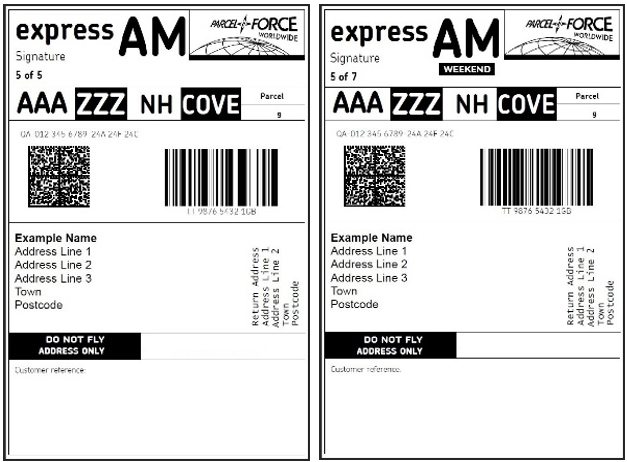
Please double-check that you have selected the correct product. The label should include the following:
- A signature indicator
- At the bottom of the label, the statements ‘Do not fly’ and ‘Address only’
- Please see an example below:
Scheduled Collections
- To request a new scheduled collection: You must meet the minimum volume requirements for a scheduled collection – please complete the following form.
Ad-hoc Collections
The ad-hoc collection process has recently changed. All customers shipping firearms and secure products must follow the updated process below when booking an ad-hoc collection:
1. Create your label and shipment in Click & Drop
- Book your parcel in Click & Drop, selecting one of the new Firearms secure services and following all the steps to produce your shipping label and create the shipment.
- You must complete the manifesting process for any items you wish to be collected.
- Please note: Click & Drop allows you to manifest multiple times per day.
2. Getting your shipment ready
Attach the label securely to your parcel and if we are collecting from an address that is not your own, now is the time to send the shipper the label and ask them to print and affix to the parcel.
Details on our packaging guidelines can be found above. Please remember to remove and discard any old shipment labels from your packaging before applying your new shipment label.
3. Arranging your collection
Once your order is manifested. Click into orders overview & select manifested orders shown below:

From this segment locate the shipments requiring a collection to be booked, you’re able to select multiple items to select per collection request booking.
Once selected click into the drop down shown below, this should be defaulted to “Re-generate labels” and select “Book collection”, then press go.


The collection address should automatically default to your registered business address. If this needs to be edited, you can click the “Edit” button to the right of Collection address shown below.

You can use this function to also arrange collections from alternative addresses for items that require return. Please ensure that any addresses selected are compliant with the terms of service for the firearms products.
Next select the collection date to the right hand side and review the items due to be collected is correct at the bottom. Once you are happy press book collection.
The next page will present you with a CC reference number. Please make a note of this number for use with any contact relating to the collection with our customer service teams. Review the information and tracking numbers. If you’re then happy with the collection, press confirm collection.
4. Managing Collections
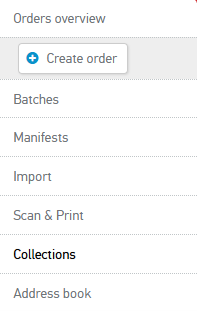
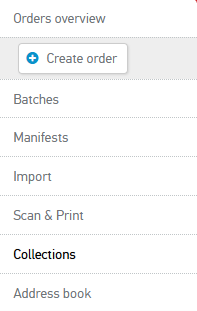
To review and manage collections this can be done by hovering over orders and selecting “Collections” from the drop down list.

Important Advisory for Returns
By issuing a returns label to your recipient, you accept full responsibility for the manner in which the item is returned. This includes ensuring the shipment complies with all applicable Parcelforce Worldwide Prohibitions and Restrictions, Terms and Conditions, and specific regulations relating to the carriage of firearms. The recipient must not drop off items at any Post Office or Parcelforce Worldwide depot. All return collections must be arranged through our ad-hoc collection process, which you, as the sender, are required to book on their behalf.
How to send a return
1. Create your label and shipment in Click & Drop
- The outbound address you usually enter should now be the returning address (account holder’s returning address).
- Both the Sending Address and Return Address on the label should display the returning address (account holder).
- You must complete your manifest process for this shipment before attempting to arrange a collection.
- Please note: Click & Drop allows you to manifest multiple times per day – which is an enhancement from the WDM Online platform.
2. Arranging the Return Collection
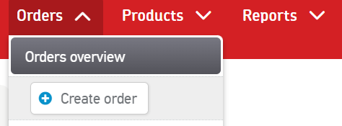
Once the label has completed the manifest steps. Hover over “Orders” and select “Orders Overview”
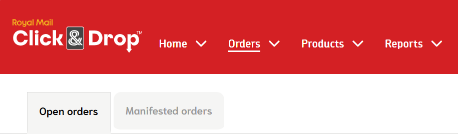
Select “Manifested Orders” from the tab selection shown below
From this segment locate the shipments requiring a collection to be booked, you’re able to select multiple items to select per collection request booking.
Once selected click into the drop down shown below, this should be defaulted to “Re-generate labels” and select “Book collection”, then press go.


The collection address should automatically default to your registered business address. You now need to click the “Edit” button to the right of Collection address shown below.

Begin to type the collection address or postcode into this field and select the correct address from the drop down of matching addresses. Once the address has populated into the address fields, press save.

Select your collection date and review the “bring my label” segment. Press “yes” if we need to bring a label for the collection or “No” if the customer already has the returns label. Once complete, press the “Book a collection” button at the top right hand side of the screen.

The next page will present you with a CC reference number. Please make a note of this number for use with any contact relating to the collection with our customer service teams. Review the information and tracking numbers. If you’re then happy with the collection, press confirm collection.
3. Managing Collections
To review and manage collections this can be done by hovering over orders and selecting “Collections” from the drop down list.

For queries relating to your booked Firearms Ad-hoc collection, Firearms tracking questions or missed Firearms collections, please contact the Firearms Helpdesk: firearms.helpdesk@parcelforce.co.uk
For enquiries or issues relating to collections that you have already received a confirmation code for, please contact the Customer Services Team on 03457 950 950 or at account.support@parcelforce.co.uk
For all Parcelforce to Royal Mail account migration and account set up enquiries or issues please contact the Account Migration Team on 0345 266 0846 or via email parcelforce.onenetwork@parcelforce.co.uk
For support with Click & Drop business accounts, shipping solutions and training requests: clickanddropsupport@royalmail.com
For general Click & Drop information, please see our Click & Drop help centre resources at: https://help.parcel.royalmail.com/hc/en-gb
General invoice, surcharge, correction charge and sales order queries, direct debit, account name and address updates, and account reinstatements: royalmail.com/forms/contactfinance
For adding additional products or services, general advice and pricing on accounts: namsalesenquiries@royalmail.com


